How to Load a Picture (Scroll down to #2 instructions if you all ready have the picture published
someplace on the web such as your website or blog.)
Starting in 2013, there is no longer an option to post a picture in the first post of a topic. Introduce the topic in the first post and then say "see next post for image" or something like that. Send the post and then follow these directions in the second post area. One word of caution, for some reason, you no longer have these options if you click to preview the post before sending. You can go back in to edit the post, but the options are no longer there. If you need the options again, you will need to go down to the next post area.Sorry for all this confusion. I'm still trying to figure out why they have made these changes.1. If you want to load a
picture from your computer that you do not all
ready have on the web, you have to load your image from your disc to a
publicly accessible web server. You can use the default server, servimg.com
by using the picture icon above with the blue disc in front of it.
Assuming you are in the Comment section of a thread...
- Click on the landscape icon with the blue disk in front of it.


- The screen will come up asking you to the load your image.

- Click the file button,
- Browse your computer for the picture you want and click on it
- Pick what size you want the image to be(there are three choices)
- then click host it.
- A page will come of giving you several URL addresses
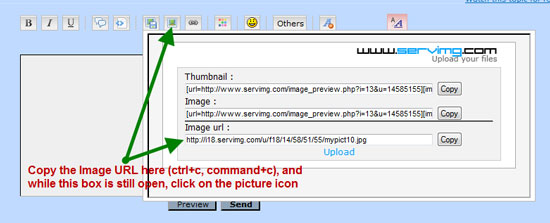
- Click the Image URL (or Thumbnail if you want a small one)
- and then click The word "Copy"
- Return the "comment page" (disregard the fact that the "load your image page" is blocking your note) and Click on the image icon (the one to the right without the blue square) and it will ask you for the URL.
- Click on the image icon (the one to the right without the blue square) and it will ask you for the URL.
-

- Paste the URL that you copied into it and the picture should appear on your page.

How do you retrieve images you have already saved to the server?
- Click on the Icon with the blue square and this will bring you to the upload your image page again.
- Click on the Serimg.com logo and this will bring you to the members login page.
- Login with the information you have established and a new page will come up.
- On the left hand side you will see "My Images".
- Click on that and your saved images will come up up.
- Below each picture is the word links. Click on that and it gives you a whole list of different URLs. Click on the Image URL under "Direct Links"
- Hit copy, allow access if it asks,
- Go back to your comment page (ignore the fact that the "load your image" page is blocking your note. it will clear when you do the next step.)
- Click on the image icon without the blue square and paste the url you copied.
The picture should appear where you had your curser just before loading.
 2. If you have a picture all ready published on the web,
Such as your web site or blog or someplace else, it will all ready have a url address
All you need to do is right click on the picture on your website that you want to post on this forum.
Scroll down the popup menu to "View Image Info."
Click on that and it will highlight the URL for the picture.

Copy the highlighted URL.
Click in the picture frame in the menu above the posting area.

Paste the URL into the space provided in the drop down menu and then click OK
The picture will appear where ever you had your cursor. .

You can test this out by
Right Clicking my signature below. On the menu that
comes up, pick "View Image Info" at the bottom and you will see the Address: (URL)
for that picture highlighted.
Hope this helps. It isn't so bad once you get used to it.
Judy and Callie

 Home
Home 
 Location


